Web Components (Part 2) – Integration into React

In the first part of this series we looked at how to build your own web components. Now, let’s take a look at the integration in React applications.

According to their idea, web components can be used independently of JavaScript frameworks. While this works with Angular, for example, with just a few steps without problems, the situation with React is unfortunately a bit different.​ Why this is so and how to solve the problem is explained in more detail below.

In principle, web components can also be fully used in React. However, in certain cases additional effort is required and deviate from the usual React conventions. Usage is no longer necessarily what React developers would expect.

Essentially, there are two problem areas: On the one hand, it is the problem “Attribute vs. Properties”, which we will address in this article. On the other hand, there is the problem of “custom events” – this is discussed in the next part of this series.

Description of the problem „Attribute vs. Properties“

As we saw in the first part of the series, there are two ways to pass data to a Web component – as an HTML attribute or as a JavaScript property.

In this code example, the value is defined as an attribute in HTML:

<my-component value="something"></my-component>

Here, on the other hand, the property of the same name is set using JavaSript:

const myComponent = document.createElement("my-component")

myComponent.value = "something"

In JavaScript, however, it is also possible to explicitly set the attribute:

myComponent.setAttribute("value", "something")

JavaScript is more flexible in this respect, because in HTML only attributes are possible – properties cannot be set in HTML.

It is important to understand: Whether and how attributes and properties are processed or taken into account by the component is entirely up to the implementation of the component. While there is a best practice​, to offer both attributes and properties and keep them in sync, technically, no one is bound to do so. It would therefore be possible to accept either only attributes or properties, or to give them completely different names (which would certainly cause the resentment of the users of the component).

On the other hand, however, there are also solid reasons for deliberately deviating from this best practice in some cases.

An important factor is that attributes and properties have different power: Attributes only allow values that can be represented as a string, i. e. strings and numbers. In addition, Boolean values can be represented by the presence or absence of an attribute. More complex data such as JavaScript objects or functions cannot be passed as an attribute, or would have to be serialized.

JavaScript properties naturally do not have this limitation. However, properties have the disadvantage that they are always imperative and not declarative when used. Instead of simply declaring, as with HTML, which state you want to have, you have to use commands to set properties in sequence. From a developer’s point of view, this is rather unattractive, because frameworks such as React and (with slight derogations) Angular have made you accustomed to the benefits of declarative work.

Another difference between attributes and properties concerns performance: Both attributes and properties are used not only to input data into the component from outside, but also to access component information. A nice example of this is the standard HTML tag <video>, which offers the current playback position of the video being played using the JavaScript property “currentTime”. When querying these properties, you get the position in seconds as a decimal number. A matching HTML attribute does not exist. Otherwise, such an attribute would have to be constantly updated with the current playback time, which would be a relatively expensive operation in the DOM. The query via a JavaScript property, on the other hand, can be solved quite efficiently, since a Lazy-Getter method can be implemented for this purpose, which is only triggered when the position is actually queried.

In web components, we have two different mechanisms for a very similar purpose, but they are quite different in some respects.

AttributeProperties
declarativeimperative
String, Number, BooleanString, Number, Boolean, Date, Object, Function

React Props

With React, things look a little more straightforward: React only knows so-called “props”. Since React places a strong focus on declarative programming, the use of HTML attributes is similar:

<MyComponent value="something" />

However, React props are not limited to certain data types, but allow transfer of arbitrary data and functions. For this purpose, a syntax with curved brackets is used instead of quotation marks:

<MyComponent
    aDate={ new Date() }
    aNumber={ 12 }
    aComplexObject={ {firstname: "Hugo", lastname: "Meier" } }
    aFunction={ () => console.log("some action") }
/>

In a way, React combines the positive aspects of attributes and properties in a single concept. 

In the component, the data arrives in a “props” object, which contains the passed values as key value pairs:

const MyComponent = (props) => {
    const aDate = props.aDate
    const aNumber = props.aNumber
    const aComplexObject = props.aComplexObject
    const aFunction = props.aFunction
    //...
}

Or a little more compact by means of destructuring:

const MyComponent = ({ aDate, aNumber, aComplexObject, aFunction}) => {
    // ...
}

As a React developer I have to say that I personally like the React variant with props much better than the distinction between attributes and properties with their respective characteristics in web components – but this is a matter of taste.

Web Components in React

Now the API of web components is just as it is. So the question is: What happens when I use a web component in React? Are “props” passed to the web component as attributes or properties?

Initially, React decides whether the tag is case-sensitive or not, and whether it is a React component (starting with uppercase letters) or an HTML tag, which includes web components. With the exception of some special cases for some standard HTML tags, React Props always uses “setAttributes” for HTML tags and web components. This means that using attributes in web components in React does not cause any problems. It is different when JavaScript properties have to be explicitly used, e. g. because complex data or functions are to be added to the Web Component. React is currently unable to do this in a declarative way. In about 90% of cases, this is not a problem because, as already mentioned above, it is considered best practice to keep attributes and properties synchronous, and to support both variants if possible. Only in the remaining 10% of cases where properties are necessary (because either the authors of the Web Component did not follow the best practice, or some other reason prevents the use of attributes) do we have to come up with something.

However, this does not mean that such web components cannot be used in React at all! We simply cannot go down the usual, purely declaratory path, but must resort to the mandatory API, which is also supported by React. We will look at how this works in the following.

React abstracts from concrete instances of DOM nodes. Even independently of web components, you have to access DOM nodes directly in some cases, for example if you want to call a method like “.focus()”. For this purpose, React uses so-called “refs” and we can use this mechanism to set JavaScript properties on our web components. In the code, for example, it looks like this:

import React, { useRef, useEffect } from "react"

const MyReactComponent = () => {
    const elementRef = useRef(null)

    useEffect(() => {
        if(elementRef.current) {
            elementRef.current.someProperty = "value"
        }
    }, [elementRef])

    return <my-custom-element ref={elementRef} />
}

With “const elementRef = useRef(null)” we create a kind of container into which React will put the reference to the DOM node after it has been made. “useEffect​” can be used to execute a function once certain variables have been changed. To do this, we give the “elementRef​” variable (wrapped into an array) as a second parameter to the​ “useEffect“-Hook-function. As soon as React has rendered the component for the first time, the specified function is executed, so our property is set accordingly. As you can see, the code is a lot more complicated than just setting an attribute directly on the tag. The example shows, however, that it is possible to use web components in React. In the fourth part of this series of articles, we will look at another variant, which scales better especially for larger applications where certain web components are to be used again and again. In the next article in the series, however, we will then take a closer look at the second problem of web components with React: The processing of custom events.

Conclusion

As an interim conclusion, the situation of web components with React is complicated. On the one hand, React is ideally suited for the development of comprehensive web applications and is therefore widely used. On the other hand, it is extremely annoying that React has such problems with a modern web technology like web components.

There are at least two reasons for this: On the one hand, React was created at a time when web components or “custom elements” were still a mere idea and far from being implemented in practice. At the same time, the React team places great emphasis on backward compatibility and understandably shies away from incompatible changes in the way React components are written. The discussion about which options are available to make React compatible with web components can be followed if you are interested in the issue tracker of the project​.

The second factor I want to highlight is: The concepts of web components and React are quite different when it comes to how components are used. React is designed entirely for declarative programming, while web components and standard HTML tags provide a mixed form that is partly declarative, but in some places imperative. And since React developers like this declarative character of React, it is not the solution to simply blindly adopt the imperative API of web components. Instead, ways need to be found to enable these two “worlds” to work together. Unfortunately, the process of finding a solution has been going on for quite some time now, and in the meantime the discussion within the React-developer community seems to have fallen asleep a bit.

It is therefore only to be hoped that this process will pick up speed again, so that web components can be used in React projects easily and without any hassle. 

Web Components (Part 1) – Building Your Own Components

So-called “web components” are one way of building reusable UI components for web applications. Unlike common single-page app frameworks such as React or Angular, the component model is based on web standards. Since SPA frameworks can, in fact, do far more than just build components, web components do not compete directly with the established frameworks. They can, however, be a useful addition. Whenever components are meant to be reused for applications with different technology stacks, web components can be very useful indeed.

Still, using web components in single-page applications presents some difficulties when you go into detail: While the integration into Angular applications is relatively simple, a few things have to be observed, in particular when using React applications.

Whether the “fault” lies on React or the web component standard depends on one’s point of view and is not easily answered. Furthermore, there are some aspects where web components are disadvantageous even with respect to their core competency of building components because they are unnecessarily complicated or inflexible, e.g. compared to React.

Figure 1: Web components and SPA frameworks

This series of blog posts deals with these and other aspects regarding the interaction of web components and SPA frameworks, in particular React. The first part of the series focuses only on web components, what the term means, and how to build web components.

What are web components, and how do you build your own components?

The term “web components” refers to several separate HTML specifications that deal with various aspects of the development of one’s own components. Consequently, there is no such thing as “one” standard for web components; rather, it is a combination of several specifications.

The two most important ones are “Custom Elements” and “Shadow DOM”. The Custom Elements specification describes the JavaScript base class “HTMLElement”, among others, from which individual components have to be derived. This class provides numerous lifecycle methods that allow you to respond to various events in the component’s life cycle. You can, for example, program a response to the component being integrated into a document or attributes of the component being set. The developers of a component can then update the presentation of the component. Custom Elements furthermore comprise the possibility to register individual component classes under a specific HTML tag so that the component is then available throughout the entire document.

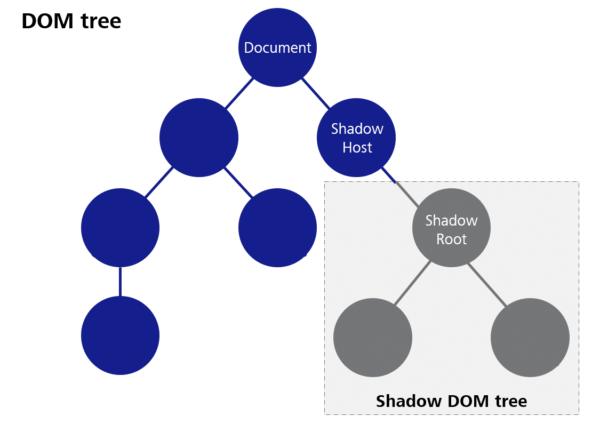
“Shadow DOM” means a method that allows for a separate DOM tree, which is largely isolated from the rest of the document, to be created for a component. This means, for example, that CSS properties set globally in the document do not take effect in the Shadow DOM, and on the other hand, CSS definitions within a component do not affect other elements in the document. The goal is to better encapsulate the components and avoid unwanted side effects when integrating foreign web components.

The following code block shows a simple Hello World component that comprises a property for the name of the person to be greeted.

class HelloWorld extends HTMLElement {

    person = ""

    constructor() {
        super();

        this.attachShadow({mode: "open"})

        this.shadowRoot.innerHTML = `
            <div>
                <p>Hello <span id="personGreeting"></span></p>
            </div>
        `
    }

    static get observedAttributes() {
        return ['person']
    }

    attributeChangedCallback(name, oldValue, newValue) {
        if(name === "person") {
            if(this.person !== newValue) {
                this.person = newValue
                this.update()
            }
        }
    }

    update() {
        this.shadowRoot.querySelector("#personGreeting").textContent = this.person
    }

}
window.customElements.define("app-hello-world", HelloWorld)

Firstly, a separate Shadow DOM tree is created for the component in the constructor of the component. “Mode: open” ensures that it is possible to access the DOM tree of the component from the outside with JavaScript despite the Shadow DOM barrier.

Then, the “shadowRoot”, i.e. the root node of the Shadow DOM, is created according to our requirements—in this case, with “innerHTML”.

With “observedAttributes”, we describe which attributes the component is supposed to have and/or which attributes we want to be notified of (we can also specify standard attributes such as “class” at this point).

The notification is done by means of the “attributeChangedCallback” method, with the name of the changed attribute and both the old and the new value as parameters. Since we only specified one attribute in “observedAttributes” in this case, checking the name of the attribute is not really necessary. In the case of several attributes, however, it is important to always check which attribute has been changed in each case.

In our case, we first check whether the new value is actually different from the previous one (we will see how this can happen later on). Then, we set the “person” property that we created as class variable to the value of the submitted attribute.

To update the presentation of the component, the “update” method was created in this example. This method is not part of the Custom Elements standard, but only serves to gather the update logic in one place in this case. We retrieve the previously created span element with the ID “person” from the Shadow DOM and set its text to the value of the “person” property.

Figure 2: Shadow DOM

The code example shows how, in a final step, our component class is registered with the tag name “app-hello-world”. It is important that the name comprises at least one minus sign. This rule was defined in order to avoid possible name collisions with future standard HTML tags. Choosing a meaningful prefix for one’s own components has also proven to be useful to prevent collisions with other component libraries as far as possible (the prefix “app” used in the example is, in fact, not a very good example in this respect). However, there is no sure way to prevent conflicts.

We are now able to submit simple data to the component by means of attributes. “Attributes” have a few more particularities and pitfalls, but we are going to deal with those in the next part of this series of blog posts. For this general introduction, we will leave it at that.

Slots

The so-called “slots” are another important feature of web components that will be dealt with again in a later part of this series. Slots allow for HTML snippets to be submitted to a component. The component then decides how to present the submitted elements. For example, if we want to build a message box that presents both a text and an icon inside a frame, it is advisable to submit the message text to the component by means of a slot instead of an attribute. This way, we are not limited to plain text, but we can use any HTML content we want.

Here is an example of how this can look in the application:

<app-notification-box>
	<p>Some Text with additional <strong>tags</strong></p>
</app-notification-box>

We only have to write the HTML tags we want as child elements. Within the component, there has to be a <slot> element in the Shadow root for this purpose. When the component is rendered, the submitted content is then displayed instead of the slot element.

<div>
    <div>Icon</div>
    <div id="content">
        <slot></slot>
    </div>
</div>

A component can also contain several slots. In order for the browser to be able to decide which HTML elements to assign to which slot, so-called “named slots” have to be used in this case, i.e. the slots are given a specific name attribute. A component must not contain more than one slot without a name attribute. This one is called the “default slot”. Here is an example of how this can look in the component:

<div>
    <div id="header">
        <h1>
            <slot name="header"></slot>
        </h1>
    </div>
    <div id="icon">
        <slot name="icon"></slot>
    </div>
    <div id="content">
        <slot><slot>
    </div>
</div>

This is an example of how this could look when used:

<app-notification-box>
    <p>Some Content</p>
    <span slot="header">A meaningful Header</span>
    <img slot="icon" src="..." alt="notification icon"/>
</app-notification-box>

You can see how the “slot” attribute is used here. The values have to match the “name” attributes of the slots within the component. Consequently, this is part of a component’s public API and has to be documented accordingly.

Events

So far, we have only considered how data can be submitted to the components, but we have not yet looked at the opposite direction. In order to be truly interactive, developers must also be able to respond to certain events and accept data from the component.

This is the purpose of HTML events. We are only going to take a brief look at this aspect in this post and address it in more detail later.

Web components can generate both standard events and custom events.

Standard events are useful if the type of event also appears with standard HTML elements and does not need to be invented, e.g. a KeyboardEvent. Custom events are useful if additional data are to be sent with the event as payload. For example, if we build our own interactive table component where the users can select individual lines, it may be advisable to trigger an event upon selection that contains the data from the selected line as payload.

The mechanism for triggering an event is the same for all kinds of events. It can be seen in the following code block:

class InteractiveComponent extends HTMLElement {

    triggerStandardEvent() {
        const event = new Event("close")
        this.dispatchEvent(event)
    }

    triggerCustomEvent() {
        const event = new CustomEvent("some-reason", 
            { detail: { someData: "..." }}
        )
        this.dispatchEvent(event)
    }
}

To generate an event, you either generate an instance of “event” or one of the other event classes (one of which is “CustomEvent”). Every event constructor expects the first parameter to be the type of event. This type is later used to register listeners for these events as well.

The second parameter is optional and constitutes a JavaScript object that configures the event. For CustomEvent, for example, the “detail” field is provided to submit any desired payload data.

Conclusion

This post gives a brief introduction to the topic of “web components”, and with the methods shown, you can already build your own components. There are, of course, numerous other aspects that need to be considered in the development of web components. After all, this topic fills a number of reference books. In this series of blog posts, we want to focus on some of the pitfalls that can occur with individual issues, and examine how to avoid them. This series will also include a critical analysis of the web component API. The next blog posts are going to focus on the interaction with SPA frameworks in particular.