After having a deeper look into the project environment and the basic anatomy of an Angular-CLI-Electron project in the last article we now want to build a simple application using the Node.js as well as the Electron API to get a deeper insight into the possibilities of such an app and to gain more familiarity with the environment. Our example will be a basic file explorer which can browse through the directories of our file system and open files in their associated default program. It should also provide a keyboard shortcut to move up in the file tree.
To set up the project you can either follow the steps in the last article or you use the angular-2-electron-seed project. For the purpose of this article I will do the latter. So after cloning the seed with
we change into the project directory (electron-explorer) and open the package.json where we adapt the name field to match our project name electron-explorer. After this we have to run
npm install
to install the required dependencies.
Building the application
After setting up the project we can run npm run start to have a look at the current state.
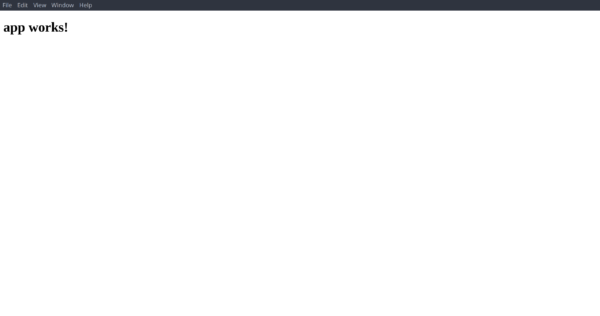
Figure 1: Angular 2 – Electron seed default app
We can see the default app of the Angular-CLI inside of Electron.
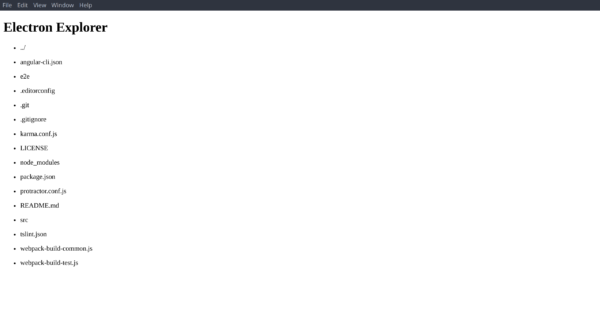
To build a simple file list view we just need a component which displays a list of all files in the current directory. All directory entries are displayed as links, which change the currently displayed directory or open the selected file. For the purpose of simplicity we store the currently active directory in the component itself. We fetch all available files in the active directory via the Node.js core module fs and display the entries via NgFor.
So let’s start with creating the component. To do so, change into the directory src/app and create a new component via the scaffolding command of the Angular-CLI by running
ng generate component files
This creates a new component called FilesComponent which is bound to the HTML tag <app-files></app-files>. The generated component already contains a basic component class in the file src/app/files/files.component.ts, decorated with the correctly configured @Component decorator. To implement our component we have to include the necessary file system functions from the Node.js core module fs and some other functions from the Node core via
    import { readdir, stat } from 'fs';
    import { resolve } from 'path';
    [...]
After this we implement our properties for storing the current directory, as well as all file system elements in this directory. These properties are always updated in sync via the changeDir method when the user clicks on a directory entry. When a regular file is clicked we want to open it in the systems default application, rather than changing the directory. This can be implemented the following way:
To represent these information in our view we list all the file system entries via NgFor and handle the user interaction via a click binding by inserting the following into src/app/files/files.component.html:
    <ul *ngFor="let entry of entries">
      <li><a (click)="changeDir(entry)">{{entry}}</a></li>
    </ul>
During development you can live-test and debug your app by running npm run start and you can create unit tests by adding test cases in the <component>.spec.ts file of your component and run them via npm run test.
After adding the directive to the main view (it is added to the module automatically by the CLI), by inserting
<app-files></app-files>
at the end of src/app.component.html and setting the correct application title in src/app.component.ts we can have a first look at our file list.
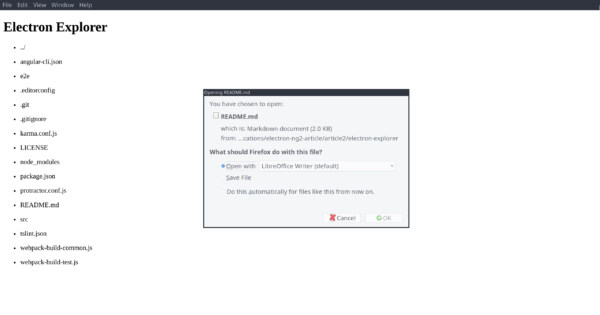
If the user clicks on a file, we want to open the file in the default program associated with the file type on the users system. Fortunately Electron provides this feature out of the box with the function shell.openItem. Lets include the shell object by adding
import { shell } from 'electron';
to the top of src/app/files/files.component.ts and implement our openFile method by using the provided helper function:
Implementing keyboard shortcuts is a bit harder because of Electrons architecture. Electron allows the registration of keyboard shortcuts in the MainProcess only, while our application gets executed in a RendererProcess. Because we want to handle the keyboard shortcuts in our application we have to use Inter-process communication (IPC) to communicate between the MainProcess and a RendererProcess. Fortunately Electron provides an easy event-based IPC mechanism to achieve this. In the Electron IPC mechanism the MainProcess doesn’t know how to send information to a RendererProcess until it gets a reference to corresponding IPC endpoint through an incoming message. Therefor our application has to request the keyboard shortcut in the RendererProcess using ipcRenderer.send:
Our files component now sends a message to our MainProcess containing the desired keyboard shortcut. Our MainProcess now listens for the request-keyboard-shortcut message, subscribes to the provided shortcut via globalShortcut.register and notifies our component via event.sender.send. To implement this behavior, we edit src/entry.js:
Make sure to make the corresponding changes in src/entry.live.js to enable the feature when running your app with npm run start, too. Now we can listen for the corresponding keyboard-shortcut-Backspace event in our component and move upwards in the file tree:
Now our app reacts to key presses on Backspace and moves to the parent directory. Great!
With only little code we created our own small file explorer which already integrates itself into the surrounding system and there are a lot more APIs we could use to achieve more system integration and features!
As we have seen Electron can be a great tool to develop full-featured desktop applications especially when combined with a modern GUI application framework like Angular 2.
The rapid development in the world of web technologies, especially in SPA frameworks like Angular 2 and React, empowers developers to build enterprise scale, platform independent applications with a flexible and vivid technology stack. Although these applications can fulfill numerous use cases they may fall short in others because of the limitations web applications have. Especially the limited environment integration and system access capabilities make some kinds of applications impossible (e.g. missing file system access) or hurt the user experience (e.g. no offline usage, no integration into application menu or task bar in most cases).
The Electron Framework by GitHub attempts to tackle those problems while preserving the advantages of web technologies by wrapping conventional web apps as native applications and giving them powerful access to the underlying system and their environment.
In this article we will go over the process of building a hybrid Desktop App with Angular 2 using the Angular-CLI and Electron.
About Electron
Electron is an open source framework developed by GitHub for the Atom project. It integrates web technology based applications into the system, to make them work like native applications. To do so, it uses the rendering component of the Chromium browser to render the web views, while executing the JavaScript elements of the app in the Node.js runtime environment to provide access to the underlying system. In addition Electron brings additional APIs to integrate the application into the environment (e.g. with keyboard listeners, notifications, tray integration, etc.) it runs in.
Creating an Electron application
To run a web app in Electron, you need to provide an entry point script to the electron binary (which is available as binary package or as NPM module). You can find an example of an entry point script at the Electron quick start repo. The entry point (which is run in the Main Process) can register global handlers for the app (e.g. keyboard shortcuts, behavior on closing, etc.) and creates one or multiple windows for the app via
    const {app, BrowserWindow} = require('electron')
    const path = require('path')
    const url = require('url')
    // Create the browser window.
    win = new BrowserWindow({width: 800, height: 600})
    // and load the index.html of the app.
    win.loadURL(url.format({
      pathname: path.join(__dirname, 'index.html'),
      protocol: 'file:',
      slashes: true
    }))
Each of the windows runs the specified web page (index.html in this example) and the associated JavaScript in a Render Process. All the JavaScript in this Render Process has access to the full Node.js API and all available NPM packages, to the DOM, which is visually represented by the Chromium renderer of this process, as well as to parts of the Electron API.
You can pass an entry point script to Electron either via the command line arguments of the Electron binary (e.g. electron ./index.js) or you pass a directory containing an package.jsonto the Electron command (e.g. electron ./project/). In the latter case electron executes the file referenced by the mainfield of the package.json.
Building desktop apps with Angular 2
Because Electron doesn’t constrain the used web technology stack, it’s possible to use Angular 2 to create an Electron Desktop App. To spin up your project, you can use this project seed and all configuration changes, which we will perform during this article are available in this Gist.
For the purpose of this article we will build a Hello World app with Angular 2 and Electron to demonstrate the setup of such a project. You can find the resulting application in this GitHub repository. The commit which corresponds to the upcomming changes will be linked on top of every section.
We will use the Angular-CLI which is a tool for generating Angular 2 Projects without having to bother with the configuration and selection of all necessary and fast evolving tools and best practices in the Web ecosystem. In addition to the setup off linting, building, bundling and testing tools it brings some neat little features like code scaffolding or a development server.
Note Unfortunaletly the following process just works until version 1.0.0-beta.19-3 of the Angular-CLI. When using higher versions, the change detection stops working correctly. There is already an issue regarding this problem, but no solution yet.
Let’s start by setting up a new mostly configured project with the new command of the Angular-CLI. So install the Angular-CLI on your system with
npm install -g angular-cli@1.0.0-beta.19-3
Then run
ng new hello-electron
This creates a new Angular 2 Project named hello-electron, which is already preconfigured as a web project. To test if there were any issues while setting up the base project, you can run the default application. To do so, run ng serve and head your browser to the location which is printed in the terminal (normally this is http://localhost:4200). You should see the Text “App works!“
Figure 1: Angular-CLI default app
Because the Angular-CLI isn’t aware of the possibility of building Electron Desktop Apps (yet) neither the build will work out of the box nor the build results will run in Electron. To achieve this, we need to reconfigure some parts of the setup.
To use electron (and the corresponding TypeScript typings), we install it locally into our project for development purposes to set a working version and list it in our dev-dependencies:
because Electron doesn’t resolve included files relatively to the current domain (like web browsers do), but relatively to the current file tree, so the base/ would resolve relatively to the file system root. We want the dependencies to get resolved relatively to the location of index.html, so we use ./.
The file src/polyfills.ts includes some polyfills into the project. The Polyfill zone.js, which is necessary to detect asynchronous code execution to trigger the Angular 2 change detection correctly by implementing a concept named “Zones” doesn’t work by default with Node.js, which is used for the Code execution in Electron. To make the change detection work with Node.js, we have to use a different version of the zone.js polyfill, which is fortunately already installed with zone.js. To do so, we have to change the line
The Angular-CLI uses Webpack to handle the project build, the development server and particularly the module bundling. (Theoretically we don’t need module bundling when using Electron, because Node.js has native support for modules, but because Webpack handles so much different things of our projects infrastructure, it is easier to configure Webpack for Electron and bundle our project, than it is to rebuild all the infrastructure ourselves.) Unfortunately the Angular-CLI hides the Webpack configuration it uses for building the project, so there is no official way to adapt the build in the current version of the CLI (v1.0.0-beta.20-4). (There are plans of the CLI-Team to establish a configuration interface for CLI-Project, but there are neither precise ideas nor implementations of this feature yet.) The only possibility I found was to locate the configuration files the CLI uses to build the current project, make a copy of the relevant ones, modify the copy and overwrite the original ones with the modified copies. To do so copy the file node_modules/angular-cli/models/webpack-build-common.js into your project root.
After this open the file and modify the returned Object in the following way:
This configures Webpack not to build for a Web environment but for an Electron rendering Process. Basically this allows you to include Node.js core modules as well as using browser and Electron specific APIs (like the DOM) in your application (read more about different targets in the Webpack documentation).
We also want our Electron entry point script (which we will add to the project shortly) to be automatically copied from our project sources to our build result. We can achieve this with Webpack by installing the copy-webpack-plugin into our project vianpm install --save-dev copy-webpack-plugin
Now we can use it by including it in our webpack-build-common.js:
Easy and integrated unit testing is another major feature of the Angular-CLI, which does not run out of the box, when using Electron as environment. All tests, which involve features of the Node.js environment fail, because they are not available in the normal Browser, which the preconfigured test runner uses to run the tests in. To run our unit test, we have to configure the test runner, to run our tests in Electron, too.
This configures Karma to use Electron and execute every test in a new Browser (Electron) window, instead of in an iFrame in the same window. This is necessary, because iFrames in Electron have no access to the Node.js environment, while windows have.
Unfortunately there are some more caveats, we have to consider: The first one is, that the Jasmine (assertion framework) version, which is used by the Angular-CLI has a bug, which occurs when including Node modules in your code. This bug is fixed in the version 2.5+ of Jasmine. In addition to this the corresponding typings only work until version 2.5.41 . So run
to install a version of Jasmine, which is above version 2.5. This overwrites the preinstalled version. The second problem is that the Angular-CLI uses a different Webpack configuration for building the tests than for building the regular distributions. So we have to set the target property in node_modules/angular-cli/models/webpack-build-test.js, too. Therefore copy the file into your project root and set the target property of the returned object to 'electron-renderer', like in the last section.
With these changes we have set up the provided unit testing for our Angular2-Electron app and can run the test via ng test or npm run test.
The Angular-CLI also brings a setup for End-To-End (aka. e2e, aka. UI-Testing) which can easily be configured to use Electron as execution environment instead of Google Chrome because it can provide the same webdriver interface as Chrome. To configure the e2e testing framework (called Protractor) open the file protractor.conf.js and adapt it the following way:
Now Protractor uses Electron instead of Chrome and all your tests will work, even when they use Node.js features. Be aware, that the End-To-End testing setup of the Angular-CLI requires a running dev server, which we will configure in the next section.
To optimize our workflow I highly recommend setting some properties and scripts in our projects package.json.
To make Electron behave correctly, when initialized in the projects root directory, set the main field of the package.json:
    {
      [...]
      "main": "dist/entry.js",
      [...]
    }
dist/entry.js will be the location of our Electron entrypoint in the build result.
We also want our modified Webpack config to get automatically copied into the correct directory after the install step in our project. Because copying works differently when working on different operating systems, we can use the NPM package cpx to perform the copy step platform independently (if you do not care about developing on different platforms, use the copy command of your OS instead of cpx [cp on UNIX likes, copy on Windows]). Install cpx
npm install --save-dev cpx
and add the following line to the scripts block of your package.json:
The postinstall script (also called the postinstall hook) is automatically invoked after running npm install. So after running npm install your modified Webpack config will be adopted by the Angular-CLI.
Because I am used to build my project with npm run build, I map the NPM build script to the build command of the Angular-CLI, by adding
To run our app, we add the run script, which initializes Electron in our package directory:
"run": "electron .",
So running npm run run will launch our Electron app.
Now we have a project setup, which will allow us to build, test and run our app, but the Angular-CLI provides another very neat feature called LiveReload. LiveReload spins up a webserver via the Webpack dev server, which serves our app wrapped in some more JavaScript, that reloads our app automatically from the server when it changes, while our sources get recompiled every time they are modified. This makes it possible to develop our app while constantly seeing the current state and without having to compile and run it by hand every time we make a change. Because we use Electron instead of a browser and we want to build desktop apps, we load our app directly from the build result and have no connection to the LiveReload server by default. To use this feature, we have to crate a second, slightly modified Electron entry point for development purposes and load this one to use LiveReload. We now create an additional NPM script, which concurrently starts the dev server and our Electron binary with our “live” entry point (which we will create later). To do so, we use the tool concurrently, which we install with
npm install --save-dev concurrently
Then we add the following NPM script to our package.json:
To load our App into Electron, we need to create an entry point at src/entry.js, whose main purpose is to load the entry point HTML document (which is generated in the build process). We use this slightly modified version of the example entry point from the Electron documentation. Basically the entry point loads the file index.html in the same directory as the entry point itself into a new window by calling
It also handles general application lifecycle events like application start or exit and registers environment integration like keyboard bindings or tray icons. A small modification opens the developer tools, when the app is started with the environment variable NODE_ENV=development set.
To make use of LiveReloading, we also need the alternative entry point src/entry.live.js which you can find here. This entry point is mostly the same as src/entry.js. The only difference is, that the application entry point page gets loaded from the dev server instead of the file system. By default the dev server serves at http://localhost:4200, so we change the lines
We also want to set a short timeout, so we reduce the chance of loading the file from the server, before the server has finished building (you may adapt the time according to your project size and the resulting build time). To do so, we change the createWindow function:
    [...]
    function createWindow () {
      // content
      [...]
    }
    [...]
Because the dev server only serves the static files and handles the changes, it is not relevant, if the code inside the application bundle is written for the browser or for Electron and Electron executes any provided code in the bundle, whether it is generated by your sources or by the dev server. So the page gets loaded and reloads itself, when the dev server recognizes changes.
After building our application inside our development environment, we want to distribute our app as platform specific packages. Package distribution in the Electron world usually works by packing all the necessary application resources together with the Electron binary for the specific target platform. The binary is renamed to the name of your application, so when running the resulting executable, Electron is started, locates your entry point (because it is noted in the package.json) and loads your application. Conveniently there is a tool called electron-packager, which automates the process of packaging your application for different platforms and architectures and carries the responsibility for creating all the platform specific packaging formats, configuration files, icon formats, etc.
So let us install the tool
npm install --save-dev electron-packager
and include it into our workflow by adding the following NPM scripts to our package.json:
These scripts create the application packages for the specified platforms in the directory packages and the --ignore flags prevents the inclusion of files, which are unnecessary for the package (some directories like your devDependencies or .git are ignored by default). You can also build your packages on your CI system to automate your application distribution, but it has to be said, that packaging for Windows on non-Windows systems requires Wine, which on the other hand may not deal very well with headless systems out of the box.
Now we have a completely configured project environment, for building an Angular-2-Electron App, with all the features, which are available through the Angular-CLI. We can now go on with creating our little app itself.
To make our app say hello we need to set the value of the title property in the AppComponent class in src/app/app.component.ts to our desired value, let’s say ‘Hello Electron!’
    [...]
    export class AppComponent {
      title = 'Hello Electron!';
    }
To make our tests pass, we need to set this text in the components test src/app/app.component.spec.ts as well es in the e2e test specification e2e/app.e2e-spec.ts.
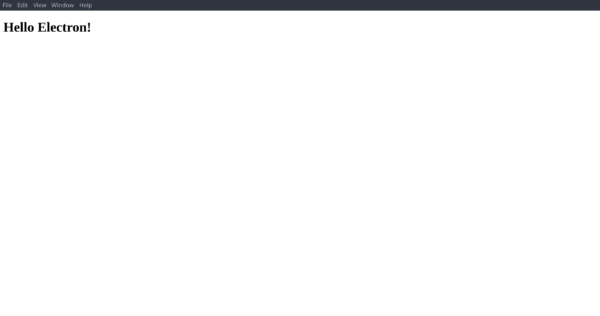
After this we can build and run our app with
npm run build && npm run run
Figure 2: Hello Electron app
With this setup you can build powerful desktop applications, while being supported by the rapidly evolving ecosystem of Node.js, Angular 2 and the Angular-CLI.
In the next article we will build a simple file explorer with these technologies to gain a deeper insight into the power of Node.js and the Electron API.